


Readdock - PDF Tools
4.15.00 Reviews
App Specs
- Version
- 1.9.4
- Updated On
- License
- Free
- Downloads
- 1,000,000+
- Developer
- Innovate AI
- Categories
- Productivity
- Platform
- Android
Screenshots
 Analysis by AppCompare
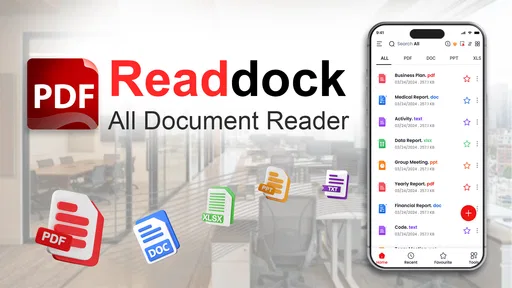
I use my phone for far more documents than I expected: forms sent by email, scanned receipts, contracts waiting for a signature, and PDFs that need a quick note before I forward them. Readdock - PDF Tools is built around that kind of everyday document work. It is a free productivity app from Innovate AI that brings reading, annotation, signing, scanning, conversion, and PDF management into one place instead of making me jump between several separate utilities.
That combination is its main appeal, but it is also the point that needs the closest look. An app that tries to cover every part of a PDF workflow can be much more convenient than a collection of single-purpose tools, yet it may not match a specialist editor in every task. After spending time with it, I see Readdock as a practical mobile document station: especially useful when speed and convenience matter more than advanced desktop-level control.
How Readdock fits into a real PDF workflow
The app belongs in the productivity category, but I would describe its role more specifically as a pocket document workspace. Rather than focusing only on reading, it treats a PDF as something I may need to inspect, mark up, complete, sign, scan, or convert. That makes it relevant to students, freelancers, office workers, renters, small business owners, and anyone who regularly receives documents on a phone.
Its store summary points to a fast workflow, and that is the right way to understand the product. The benefit is not necessarily that every individual tool will outperform a dedicated alternative. The benefit is that the same app can handle the next step without forcing me to export a file, open another service, and work out where the result was saved.
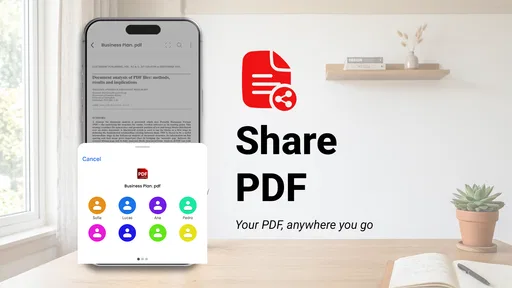
A realistic example is a rental form sent while I am away from my computer. I can open the PDF, read the clauses, mark a question, add a signature, and keep the finished version with the rest of my documents. If the form exists only on paper, the scanning function gives me a starting point. That sequence is more valuable than any one feature viewed in isolation.
The app is rated for Everyone, so its intended audience is broad rather than limited to a specialist professional group. It has passed the one-million-install mark and holds an average rating of 4.2 from roughly three thousand ratings, which suggests that the all-in-one approach is attracting a meaningful audience. I would still treat those figures as a starting signal, not proof that every workflow will feel equally polished.
Reading and annotating without losing the original
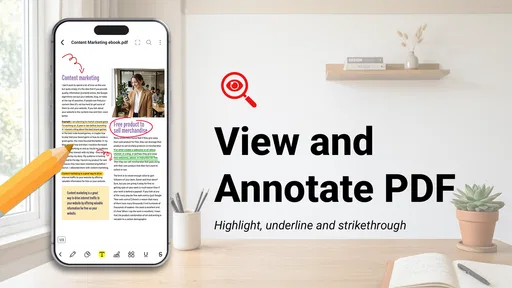
For ordinary reading, I prefer a tool that gets out of the way. A PDF utility becomes frustrating when opening a file turns into a hunt through menus, or when marking a document feels like editing a word-processing file with the wrong controls. Readdock’s value is strongest when I want to move from reading to a small action quickly: highlight a passage, add a note, or prepare the file for someone else.
Worth Reading Before You Choose

Baby Panda World Brings Quick Play to Modern Phones, but Its Game Library Feels Busy

ESPN’s Live Game View Makes Following Close Games Easier

QuizzLand Review: A Good Fit for Short Trivia Breaks, Not Every Player

Basketball Stars: Multiplayer Is Fast, but Can It Recover When Matches Go Wrong?

WEBTOON Turns Phone Updates Into a Better Reading Routine

Link to Windows Runs on Shared Habits, Not Social Feeds
Annotation is particularly useful for study and review. I can imagine using one copy of a lecture handout for highlights, another document for questions, and a marked contract for a later conversation. The important practical habit is to keep an untouched source copy before making extensive changes. That is not a criticism unique to this app; it is simply sensible document hygiene when annotations and signatures become part of an important file.
On a phone, screen size is an unavoidable tradeoff. A compact display is fine for a few pages or a quick correction, but it is less comfortable for comparing dense tables, checking tiny legal text, or reviewing a long technical document. Readdock can make a mobile task possible, but it does not turn a phone into a large monitor. For serious line-by-line editing, I would still prefer a tablet or computer.
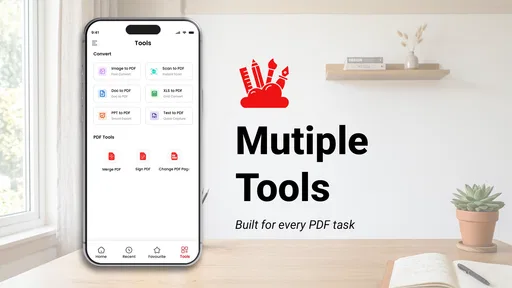
Scanning paper documents and converting files
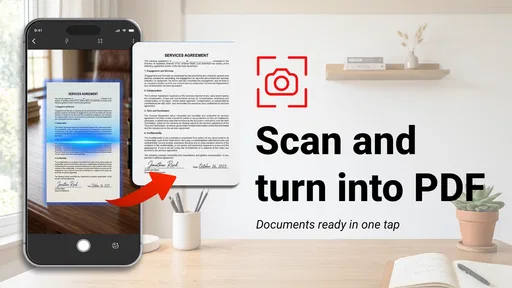
The scanning function gives the app a useful bridge between physical paperwork and digital storage. This matters in everyday situations such as capturing a signed receipt, preserving a notice from a school, or turning a printed form into something that can be sent by email. Having scanning beside PDF reading means I can begin with a paper document and continue in the same general workspace.
The practical limitation is that scanning quality depends heavily on the source. Poor lighting, curled pages, shadows, and handwriting can all make the result harder to use. I would place the paper on a contrasting flat surface, hold the phone steady, and check every page before sharing it. A scan that looks acceptable in a thumbnail may contain a cut-off signature or a missing corner when opened at full size.
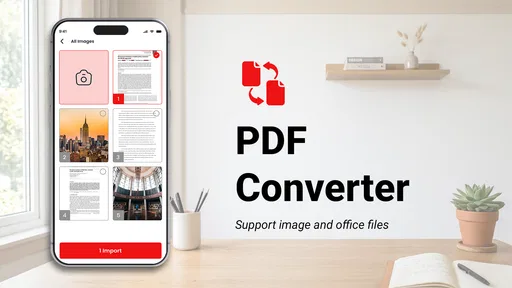
Conversion can also save time when a document needs to move into another format. However, conversion is not the same as perfect preservation. Complex layouts, unusual fonts, columns, forms, and images can shift when a PDF is transformed. My advice is to inspect the converted result rather than assuming it is identical to the source, especially when the document contains totals, dates, or fields that another person must read.
Signing and managing documents on a phone
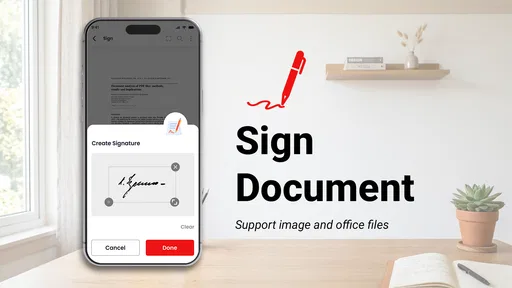
Signing is one of the clearest reasons to keep a PDF tool installed. A request that arrives during travel or outside office hours does not always justify waiting until I reach a computer. Readdock is aimed at that moment: open the document, complete the necessary action, and return it without building a complicated process around a simple task.
I would use it for routine forms and low-friction approvals, while taking extra care with sensitive or legally important paperwork. Before sending a signed file, I would check that the signature sits in the correct field, that no page has been omitted, and that the saved copy is the final version. A signature tool can make the mechanical part easy, but it cannot decide whether the document is appropriate to sign.
Document management is another quiet strength of the all-in-one design. The more often I download PDFs, the easier it is to create duplicates with vague names and lose track of which copy contains the latest edits. A useful workflow is to name files by purpose and status, such as “invoice-review” or “lease-signed,” and avoid repeatedly editing the same original. Readdock can support that habit, but the organization still depends on how consistently I manage my files.
What the free access means for value
Readdock is free to download and use as a productivity app, which makes it easy to test without committing money first. That matters here because the value depends on personal workflow. Someone who signs one form every few months may be satisfied with free access, while a person handling documents every day may quickly notice which tools matter enough to justify spending more.
The app also offers in-app purchases priced from $1.99 to $7.99 per item. I would not treat those purchases as automatically necessary. The sensible approach is to begin with the free experience, identify the exact task that saves me time, and then decide whether a paid item improves that task enough to be worthwhile. This separates genuine value from the temptation to pay simply because the app contains many tools.
That pricing range makes Readdock more approachable than committing immediately to a larger document subscription, at least for users whose needs are occasional or modest. The tradeoff is that the best value depends on what is included in the free experience and which individual purchase applies to the feature I need. I would check the purchase prompt carefully before confirming anything, particularly if I only require one action for a single document.
For a student who mostly reads and annotates, free access may already cover the important routine. For a freelancer who scans paperwork and signs forms every week, a paid option could be easier to justify if it removes repeated friction. For a business handling confidential records at scale, price alone should not decide the choice; the workflow, review process, and organizational requirements matter more than having several tools in one mobile app.
Where the all-in-one design helps, and where it gets in the way
The strongest tradeoff is simplicity versus depth. Readdock gives me one destination for several PDF jobs, which reduces app switching and keeps a short task moving. A specialist scanning app may offer a more focused capture experience, a dedicated editor may provide finer control over layout, and a full desktop PDF suite may be better for complex forms or large batches. Readdock earns its place when I value continuity across tasks.
There is also a learning curve created by breadth. An app with reading, annotation, signing, scanning, conversion, and management tools has more decisions than a basic viewer. If I only need to open a PDF, a lightweight reader may feel faster and less busy. Readdock is most convincing when I expect to do something with the document after opening it.
Mobile editing brings another compromise: precision. I can handle a quick highlight or signature more comfortably than a detailed rearrangement of a long document. Finger-based controls are convenient for urgent work, but they are not ideal for exact placement or extensive revisions. A stylus or larger screen may improve the experience, yet someone who routinely prepares polished business documents should compare the app with a more advanced desktop option before making it the center of their process.
Conversion and scanning also require a verification step. The app can shorten the path from paper or one file type to another, but speed should not replace inspection. I would zoom into scanned pages, check converted text against the original, and reopen the final PDF before sending it. That extra minute is especially important for invoices, applications, identification documents, and anything containing figures.
Another tradeoff concerns the difference between occasional convenience and dependable professional infrastructure. Readdock is attractive for personal work and small, self-managed tasks. If several people need to collaborate on controlled document versions, or if an organization has strict requirements around records, approvals, and access, a dedicated business document system may be a better fit. The app’s broad toolkit does not automatically replace those larger processes.
Who is likely to get the most from it
I would recommend Readdock first to people who regularly receive PDFs but do not want a complicated desktop suite. It suits the person who needs to read a form, annotate a study file, scan a page, or add a signature while away from a computer. It is also a reasonable starting point for someone replacing several small utilities with one general-purpose document app.
Students can benefit from the short path between reading and annotation. Instead of printing a handout or opening a separate notes tool, they can mark important passages directly in the document and keep the result together. The caution is screen comfort: long study sessions may be better on a tablet, and important notes should be backed up rather than left as the only copy inside one app.
Freelancers and independent workers are another strong match. A client may send a contract, a form may need a signature, and a receipt may need scanning on the same day. Readdock’s value comes from handling those small interruptions without requiring a full office setup. I would still maintain a clear folder structure outside the immediate editing session so that completed documents remain easy to find later.
It is less suitable for someone who only wants a minimalist PDF reader. If opening files is the entire requirement, the extra document tools may feel unnecessary. It is also not my first choice for heavy layout work, large-scale document administration, or situations where a company needs a specialized collaboration and records system. In those cases, the convenience of an all-in-one mobile app may be outweighed by the control of a more focused solution.
Device compatibility, updates, and everyday expectations
The current version is 1.9.4, and the app supports Android 7.0 and later. That gives it a broad reach across Android devices, including phones that are not running the newest system software. Still, compatibility does not guarantee identical comfort on every handset. Screen dimensions, camera quality, storage space, and general performance can affect scanning and document handling in ways that a version number cannot capture.
I would install it on the device where I actually receive documents, not only on a tablet used occasionally. The whole advantage is reducing the gap between receiving a file and acting on it. At the same time, I would avoid treating the phone as the only place where important documents exist. A separate, clearly named backup remains sensible for signed agreements, tax paperwork, and records I may need months later.
Because the developer is Innovate AI and the app covers several document actions, I would pay attention to how updates affect the tools I use most. A change that improves scanning may not matter to a reader who only annotates, while a small adjustment to signing or file handling could matter a great deal to someone completing forms daily. The best evaluation is therefore task-based: test the exact workflow I depend on before moving more documents into it.
The Everyone age rating makes it accessible for general household use, but that does not mean every document should be handled casually. I would be careful with personal identification, financial records, medical paperwork, and confidential contracts. The app can help me process those files, yet good judgment about storage, sharing, and backups remains my responsibility.
My verdict on paying, keeping, or skipping it
My overall view is favorable, with a clear condition: Readdock is valuable when I need a mobile PDF toolbox, not when I need only a viewer or a full professional publishing environment. Its free entry point makes experimentation easy, and the option to purchase individual items from $1.99 to $7.99 gives occasional users a way to consider paid value without assuming that every feature is essential.
I would keep it installed if my week includes a mixture of scanned pages, marked-up reading, signatures, and quick conversions. The most useful habit is to use it as a controlled sequence: preserve the original, perform one task at a time, inspect the result, and name the finished file clearly. That workflow turns the app’s breadth into a practical advantage instead of a collection of buttons I rarely touch.
I would skip it if my needs are either extremely simple or highly specialized. A basic reader is cleaner for reading alone, while a dedicated desktop or business platform is more appropriate for complex editing, collaboration, or formal document administration. Readdock sits in the middle, and that middle ground is exactly why it can be useful for everyday users.
For me, the buying decision is straightforward: try the free experience with the documents I genuinely handle, then pay only if a specific purchase removes a recurring annoyance. The best reason to choose Readdock is not that it does many things; it is that those things belong to the same short mobile workflow. If that matches your routine, it is a sensible productivity app to try. If it does not, its broad feature set may simply add another layer between you and a task that a simpler tool already handles well.
Pros
- Combines PDF reading
- merging
- splitting
- and conversion in one app.
- Supports quick document previews without needing several separate tools.
- Useful for organizing and managing PDFs directly on a mobile device.
- Can reduce dependence on desktop software for everyday PDF tasks.
- Practical interface for users who need basic document tools on the go.
Cons
- Advanced editing features may be limited compared with full desktop PDF suites.
- Large files can take longer to process on older phones or tablets.
- Some tools or functions may require in-app purchases or subscriptions.
- PDF conversion results may vary depending on the original document layout.
- Users should review permissions before importing sensitive or confidential files.
FAQs for Readdock - PDF Tools
What is Readdock - PDF Tools used for?
Readdock - PDF Tools is designed to help users manage and work with PDF documents from a mobile device. Depending on the available tools in the current version, you may use it to open, read, organize, convert, compress, merge, split, or otherwise edit PDF files. It can be useful for students, office workers, and anyone who regularly handles documents while away from a computer.
Can Readdock - PDF Tools edit and convert PDF files?
The app focuses on providing practical PDF utilities, but the exact editing and conversion options may depend on the version installed and the device platform. Basic document handling is generally straightforward, while advanced functions may be limited or offered through premium features. Before downloading, users should check the app listing for the currently supported formats, editing tools, export options, and any restrictions on file size or usage.
Is Readdock - PDF Tools free to download and use?
Readdock - PDF Tools may be available as a free download, although some tools or advanced functions can require in-app purchases, a subscription, or interaction with advertising. The free experience may also include limitations such as watermarks, restricted conversions, or a daily usage allowance. It is worth reviewing the pricing details shown in the Google Play Store or Apple App Store before using premium features.
Are my PDF documents safe when using Readdock - PDF Tools?
Document privacy depends on how the app processes files. Some PDF operations can be completed locally on the device, while certain conversions or cloud-based features may require files to be uploaded to a server. For sensitive contracts, identification documents, or financial records, users should review the app’s privacy policy, permissions, and data-safety information before importing files and should avoid sharing documents unnecessarily.
Does Readdock - PDF Tools work offline on Android and iOS?
Many basic PDF tasks, such as opening documents already stored on the phone, may work without an internet connection. However, online features, cloud synchronization, advertisements, account services, and some conversion tools may require internet access. Offline compatibility can also vary between Android and iOS versions, so users who need reliable access while traveling should test the main functions before depending on the app.


